Class 9 - Getting Started with LÖVE
Play homework
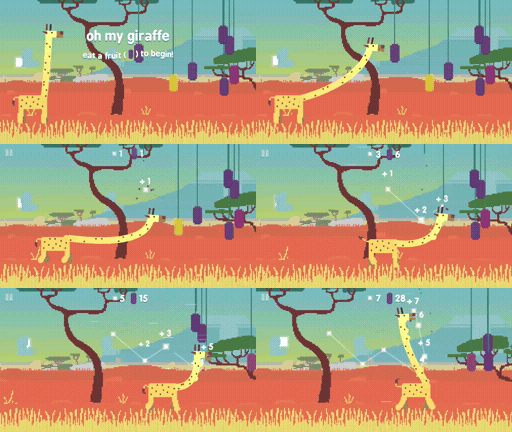
- Oh My Giraffe (It plays on an old version of Love, as well as can be played as an Android Play app or iOS app)
Topics
- Install Love
- Love framework vs Lua language
- Graphics in Love
- Shapes
- Delta time
-
Player input keypresses - Images
Description
This week we take what we know of Lua and Pico-8 and apply it to using another framework: Love. We install Love and began to create video game graphics. We’ll review the basics of a ‘game loop’, draw shapes on the screen and take player input, comparing this with the approach of Pico-8 and using the added ability to draw more complex images to the screen.
Class notes
Installation
To use LOVE on our computer we have to install and set it up.
An outline of the steps are:
- Download/Install LOVE (Love2d) from its website.
- Download a code editor like VS Code (or VS Codium)
- Launch VS Code editor and install the love-launcher extension.
- Create a new folder. Add a blank main.lua file into that folder. In VS Code choose “Open folder” and select that folder to open. With the main.lua file open click to Run Love and set up the location of LOVE and give any needed permissions to run your code.
LÖVE
Go to love2d.org.
You should download the 64-bit installer (for modern computers). Use the Windows installer or the Zipped Mac download (and move it to your applications folder after download/unzipping).
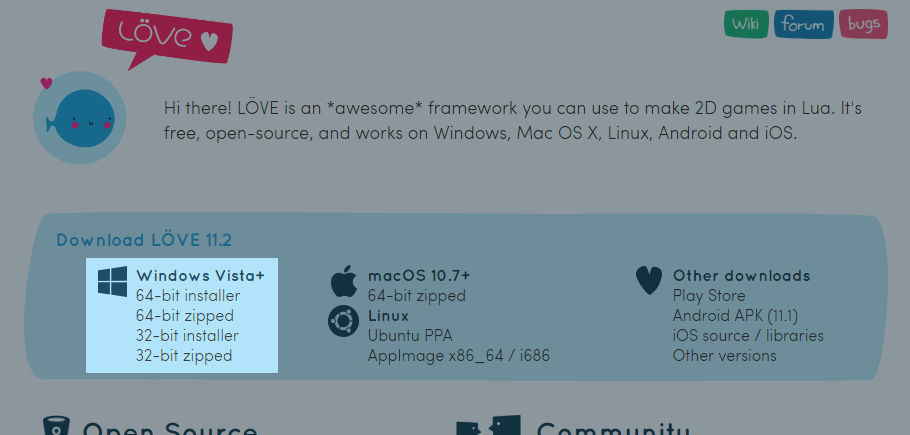
If using the Windows installer click on Next. Click on I agree. Now you can decide where you install LÖVE. The default settings are the easiest to set up. Make sure if you change the install location that you remember its location because we need it in a moment. This folder will be referred to as the Installation Folder.
On a PC the default location for my installation folder is C:/Program Files/LOVE.
Click on Next. Click on Install.
When LÖVE is done installing, click on Finish.
Install text editor
We will first need a text editor, which is where we write the actual Love2d code on our computer. For those starting out, try VSCodium or Visual Studio Code (VS Code), available for macOS, Windows and Linux. But any preferred text editor is fine.
Note: If you use iCloud, VSCodium will have significant lag and it is recommended to install VS Code instead.
IDEs such as ZeroBrane Studio, Sublime Text, Notepad++, and SciTE all support launching LÖVE programs (the engine to run our L5 scripts), though require additional setup configuration not covered here.
Install love-launcher Extension for VSCodium / VS Code
In VS Code code editor, open the editor.
Click to open the extensions tab. Search for love-launcher and install the extension.
Press Install.
Now, open a folder and create a new main.lua file. In the bottom left of the window is a Run Love icon.
The first time you run it you will be asked to set the location of LOVE on your computer. It will autocomplete for Windows. On Mac, it is recommended to move LOVE to your applications folder, then set the path to LOVE inside the extension’s settings.
On Mac you may have to open up Settings > Privacy and Security and allow LOVE to “open anyway”. ___
A few more things
Try creating a starter testing file main.lua with the following code:
love.graphics.draw()
  love.graphics.print("Hello world", 100, 100)
end
Make sure after entering this code that you save your main.lua file. A good test to make sure everything is set up okay is to try running this program. If you have the love-launcher set up correctly you should be able to click the “Run Love” in the bottom left of your code editor window. If you don’t see this button, go back and make sure the extension love-launcher is installed and that you opened a folder, not a file.
Getting started with LÖVE
What is LÖVE?
LÖVE is what we call a framework. Simply said: It’s a tool that makes programming games easier.
LÖVE is made with C++ and OpenGL, which are both considered to be very difficult. The source code of LÖVE is very complex. But all this complex code makes creating a game a lot easier for us.
For example, with love.graphics.ellipse(), we can draw an ellipse. This is the source code behind it:
void Graphics::ellipse(DrawMode mode, float x, float y, float a, float b, int points)
{
	float two_pi = static_cast<float>(LOVE_M_PI * 2);
	if (points <= 0) points = 1;
	float angle_shift = (two_pi / points);
	float phi = .0f;

	float *coords = new float[2 * (points + 1)];
	for (int i = 0; i < points; ++i, phi += angle_shift)
	{
		coords[2*i+0] = x + a * cosf(phi);
		coords[2*i+1] = y + b * sinf(phi);
	}

	coords[2*points+0] = coords[0];
	coords[2*points+1] = coords[1];

	polygon(mode, coords, (points + 1) * 2);

	delete[] coords;
}
You might not understand this code and that’s exactly why we use LÖVE. It takes care of the hard parts of programming a game, and leaves the fun part for us.
Lua
Lua is the programming language that LÖVE uses. Lua is a programming language on its own, and is not made by or for LÖVE. The creators of LÖVE simply chose Lua as the language for their framework.
So what part of what we code is LÖVE, and what is Lua? Very simple: Everything starting with love. is part of the LÖVE framework. Everything else is Lua.
These functions are part of the LÖVE framework:
love.graphics.circle("fill", 10, 10, 100, 25)
love.graphics.rectangle("line", 200, 30, 120, 100)
And this is simply Lua:
function test(a, b)
	return a + b
end
print(test(10, 20))
--Output: 30
How does LÖVE work?
LÖVE calls 3 functions. First it calls love.load(). In here we create our variables.
After that it calls love.update() and love.draw(), repeatedly in that order.
So: love.load -> love.update -> love.draw -> love.update -> love.draw -> love.update, etc.
Behind the scenes, LÖVE calls these functions, and we to create them, and fill them with code. This is what we call a callback.
LÖVE is made out of modules, love.graphics, love.audio, love.filesystem. There are about 15 modules, and each module focuses on 1 thing. Everything that you draw is done with love.graphics. And anything with sound is done with love.audio.
For now, let’s focus on love.graphics.
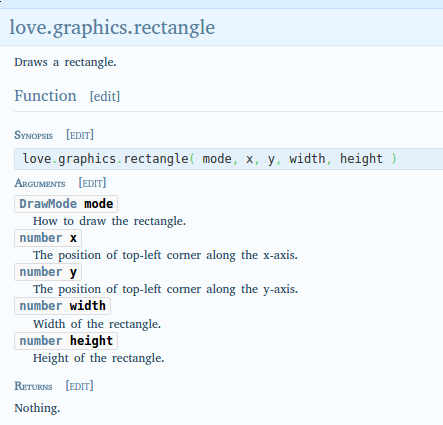
LÖVE has a wiki with an explanation for every function. Let’s say we want to draw a rectangle. On the wiki we go to love.graphics, and on the page we search for “rectangle”. There we find love.graphics.rectangle.
This page tells us what this function does and what arguments it needs. The first argument is mode, and needs to be of the type DrawMode. We can click on DrawMode to get more info about this type.
DrawMode is a string that is either “fill” or “line”, and controls how shapes are drawn.
All following arguments are numbers.
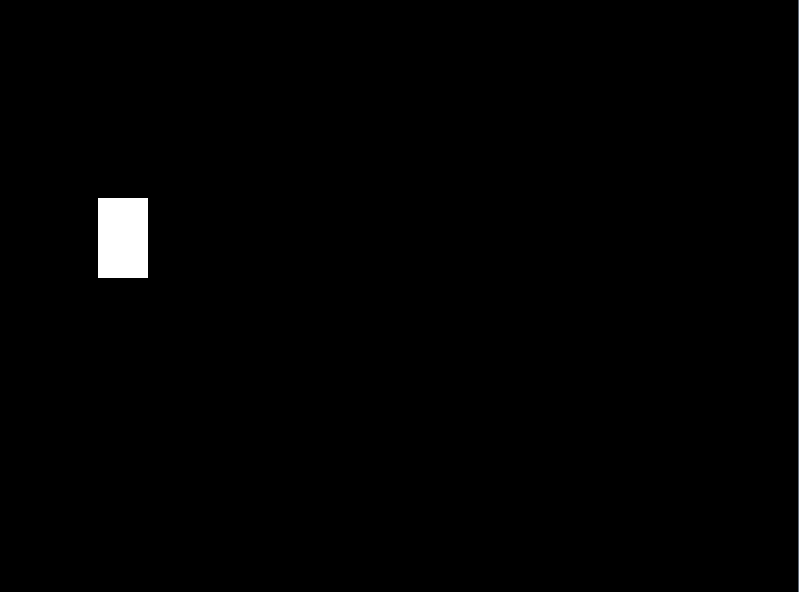
So if we want to draw a filled rectangle, we can do the following:
function love.draw()
	love.graphics.rectangle("fill", 100, 200, 50, 80)
end
Now when you run the game, you’ll see a filled rectangle.
The functions that LÖVE provides is what we call the API. API stands for Application Programming Interface. You can read the Wikipedia article to learn what an API exactly is, but in this case it simply means the LÖVE functions you can use.
Summary
LÖVE is a tool that makes it easier for us to make games. LÖVE uses a programming language called Lua. Everything starting with love. is part of the LÖVE framework. The wiki tells us everything we need to know about how to use LÖVE.
Hello, World!
There’s not much to see in the LÖVE engine. It's really a framework, meaning you can use whatever text editor you prefer. First thing to try is a "hello world" program, to make sure it launches, and to introduce you to the basic syntax of both the Lua language and the LÖVE framework. Open a text editor and enter this text.
Note that you’ll need to download the public domain font And The Door Creaked and unzip and place it in the project folder. Alternatively, use a different font and change the location and name of the font file. If you cut the font altogether then you will get a generic font and default size in your program if you remove that line.
function love.load()
  cwide = 520
  chigh = 333

  love.window.setTitle(' Hello Wörld ')
  love.window.setMode(cwide, chigh)
  font = love.graphics.setNewFont("creaked.otf", 72)
end

function love.draw()
  love.graphics.setBackgroundColor(0,0,0)

  love.graphics.setColor(1, 0.03, 0.2)
  love.graphics.print("Hello World", cwide/4, chigh/3.33)
end
Save that as main.lua.
A distributable LÖVE package is just a standard zip file, with the .love extension. The main file, which must always be named main.lua, must be at the top level of the zip file. Create it like this (in the command line):
zip hello.love main.lua
And launch it:
love ./hello.love
Moving a rectangle
Now we can start with what I like to call “The fun part”. We’re going to make stuff move!
Let’s start with the 3 main callbacks.
function love.load()

end


function love.update()


end


function love.draw()

end
Next, we draw a rectangle.
function love.draw()
	love.graphics.rectangle("line", 100, 50, 200, 150)
end
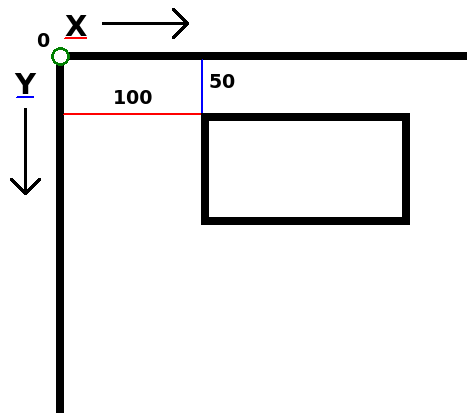
The second and third argument of this function are the x and y position.
x means “horizontal position on the screen”. 0 is the left side of the screen.
y means “vertical position on the screen”. 0 is the top side of the screen.
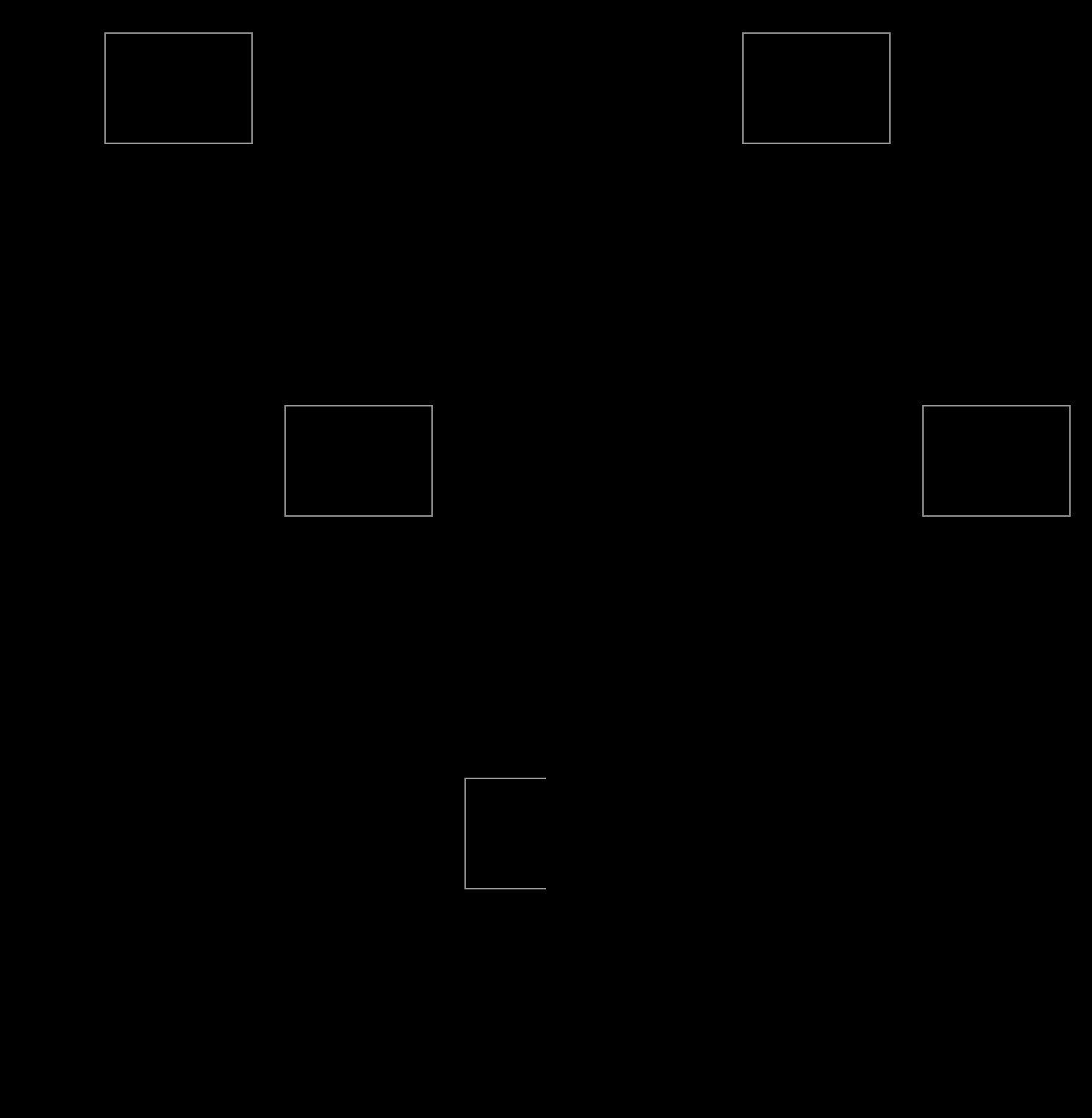
Now we want to make the rectangle move. It’s time to start thinking like a programmer. What exactly needs to happen in order for the rectangle to move to the right? The x-position needs to go up. 100, 101, 102, 103, 104, etc. But we can’t change 100 to 101. 100 is simply 100. We need to have something that can change in any number we want it to be. That’s right, a variable!
In love.load, create a new variable called x, and replace the 100 in love.graphics.rectangle with x.
function love.load()
	x = 100
end

function love.draw()
	love.graphics.rectangle("line", x, 50, 200, 150)
end
So now the x-position of our rectangle is the value of x.
Note that the variable name x is just a name. We could’ve named it icecream or unicorn or whatever. Functions don’t care about variable names, it only cares about its value.
Now we want to make the rectangle move. We do this in love.update. Every update we want to increase x by 5. In other words, x needs to be value of x + 5. And that’s exactly how we write it.
function love.update()
	x = x + 5
end
So now when x equals 100, it will change x into 100 + 5. Then next update x is 105 and x will change into 105 + 5, etc.
Run the game. The rectangle should now be moving.
 ___
___
Delta time
We got a moving rectangle, but there’s one small problem. If you were to run the game on a different computer, the rectangle might move with a different speed. This is because not all computers update at the same rate, and that can cause problems.
For example, let’s say that Computer A runs with 100 fps (frames per second), and Computer B runs with 200 fps.
100 x 5 = 500
200 x 5 = 1000
So in 1 second, x has increased with 500 on computer A, while on computer B x has increased with 1000.
Luckily, there’s a solution for this: delta time.
When LÖVE calls love.update, it passes an argument. Add the parameter dt (short for delta time) in the love.update, and let’s print it.
function love.update(dt)
	print(dt)
	x = x + 5
end
Delta time is the time that has passed between the previous and the current update. So on computer A, which runs with 100 fps, delta time on average would be 1 / 100, which is 0.01.
On computer B, delta time would be 1 / 200, which is 0.005.
So in 1 second, computer A updates 100 times, and increases x by 5 x 0.01, and computer B updates 200 times and increases x by 5 x 0.005.
100 x 5 * 0.01 = 5
200 x 5 * 0.005 = 5
By using delta time our rectangle will move with the same speed on all computers.
function love.update(dt)
	x = x + 5 * dt
Now our rectangle moves 5 pixels per second, on all computers. Change 5 to 100 to make it go faster.
Summary
We use a variable that we increase on each update to make the rectangle move. When increasing we multiply the added value by delta time. Delta time is the time between the previous and current update. Using delta time makes sure that our rectangle moves with the same speed on all computers.
Player Input with if statements and keypresses
With if-statements, we can allow pieces of code to only be executed when a condition is met.
You create an if-statement like this:
if condition then
	-- code
end
A condition, or statement, is something that’s either true or false.
For example: 5 > 9
The > means, higher than. So the statement is that 5 is higher than 9, which is false.
Put an if-statement around the code of x increasing.
function love.update(dt)
	if 5 > 9 then
		x = x + 100 * dt
	end
end
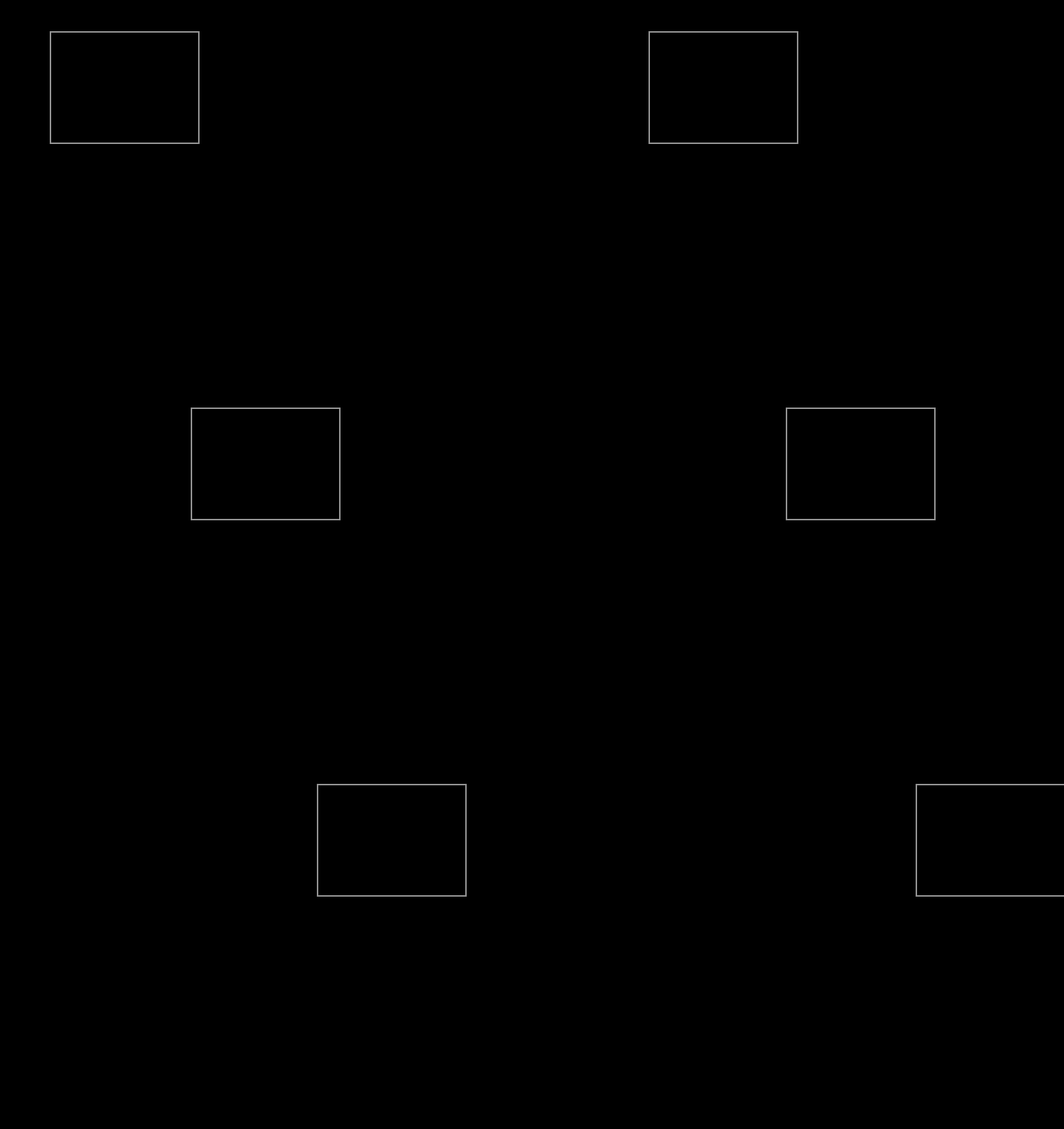
When you run the game you’ll notice that our rectangle isn’t moving. This is because the statement is false. If we were to change the statement to 5 < 9 (5 is lower than 9), then the statement is true, and the code inside the if-statement will execute.
With this, we can for example make x go up to 600, and then make it stop moving, with x < 600.
function love.update(dt)
	if x < 600 then
		x = x + 100 * dt
	end
end
If we want to check if a value is equal to another value, we need to use 2 equal-signs (==).
For example: 4 == 7
1 equal-sign is for assigning, 2 equal-signs is for comparing.
x = 10 --Assign 10 to x
x == 10 --Compare 10 to x
We can also use >= and <= to check if values are higher or equal to each other or if the values are lower and equal to each other.
10 <= 10 --true, 10 equals to 10
15 >= 4 --true, 15 is higher than 4
So the code above is a shorthand for
10 == 10 or 10 < 10
15 == 4 or 15 > 4
Boolean
A variable can also be true or false. This type of variable is what we call a boolean.
Let’s make a new variable called move, with the value true, and check if move is true in our if-statement.
function love.load()
	x = 100
	move = true
end

function love.update(dt)
	-- Remember, 2 equal signs!
	if move == true then
		x = x + 100 * dt
	end
end
move is true, so our rectangle moves. But move == true is actually redundant. We’re checking if it’s true that the value of move is true. Simply using move as a statement is good enough.
if move then
	x = x + 100 * dt
end
If we want to check if move is false, we can put a not in front of it.
if not move then
	x = x + 100 * dt
end
If we want to check if a number is NOT equal to another number, we use a tilde (~).
if 4 ~= 5 then
	x = x + 100 * dt
end
We can also assign true or false to a variable with a statement.
For example: move = 6 > 3.
If we check if move is true, and then change move to false inside the if-statement, it’s not as if we jump out of the if-statement. All the code below will still be executed.
if move then
	move = false
	print("This will still be executed!")
	x = x + 100 * dt
end
Arrow keys
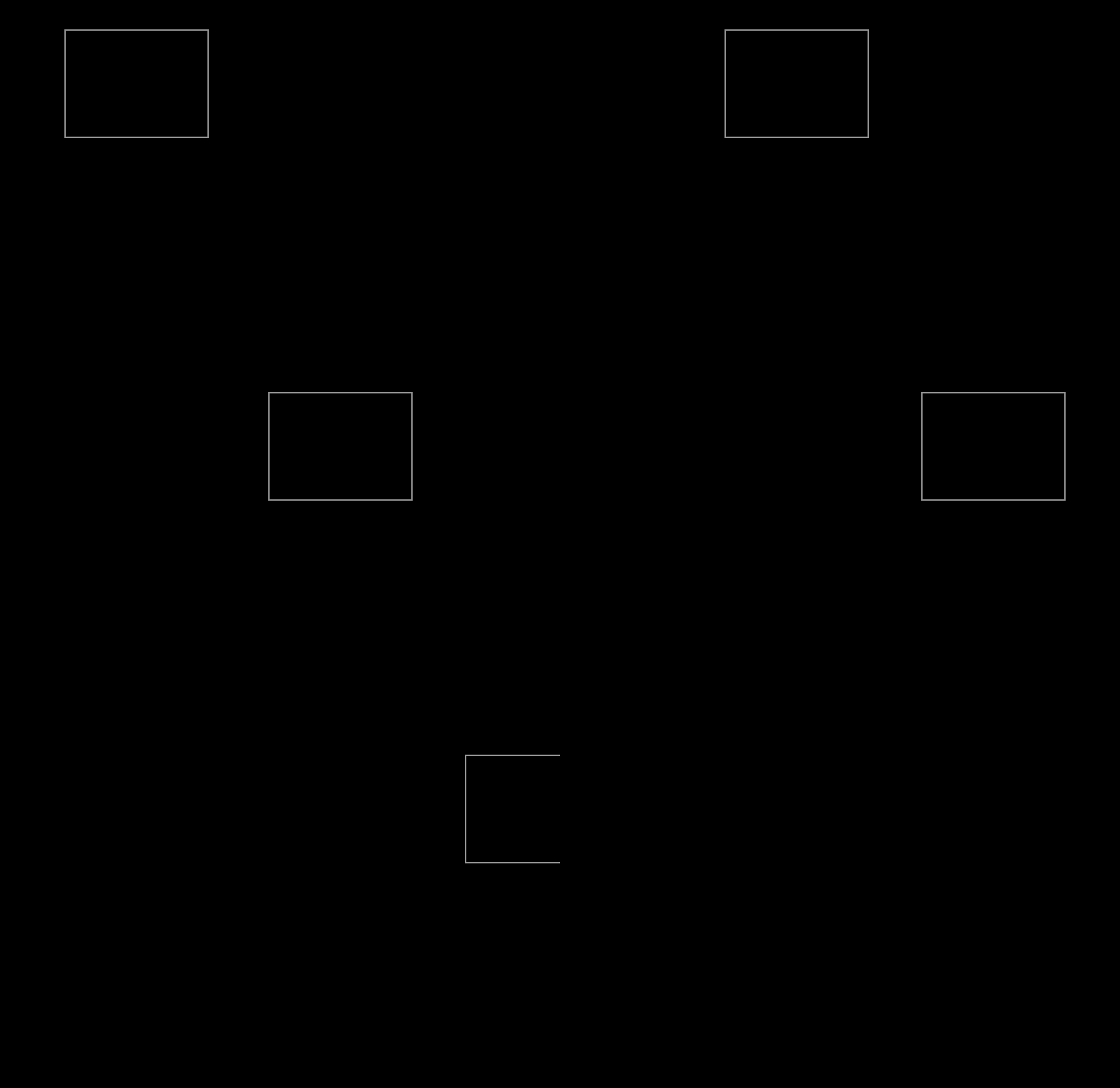
Let’s make the rectangle move based on if we hold down the right arrowkey. For this we use the function love.keyboard.isDown (wiki).
Notice how the D of Down is uppercase. This is type of casing is what we call camelCasing. We start the first word in lowercase, and then every following word’s first character we type in uppercase. This type of casing is also what we will be using for our variables throughout this tutorial.
We pass the string “right” as first argument to check if the right arrowkey is down.
if love.keyboard.isDown("right") then
	x = x + 100 * dt
end
So now only when we hold down the right arrowkey does our rectangle move.
We can also use else to tell our game what to do when the condition is false. Let’s make our rectangle move to the left, when we don’t press right.
if love.keyboard.isDown("right") then
	x = x + 100 * dt
else
	x = x - 100 * dt --We decrease the value of x
end
We can also check if another statement is true, after the first is false, with elseif. Let’s make it so that after checking if the right arrowkey is down, and it’s not, we’ll check if the left arrowkey is down.
if love.keyboard.isDown("right") then
	x = x + 100 * dt
elseif love.keyboard.isDown("left") then
	x = x - 100 * dt
end
Try to make the rectangle move up and down as well.
and & or
With and we can check if multiple statements are true.
if 5 < 9 and 14 > 7 then
	print("Both statements are true")
end
With or, the if-statement will execute if any of the statements is true.
if 20 < 9 or 14 > 7 or 5 == 10 then
	print("One of these statements is true")
end
One more thing
To be more precise, if-statements check if the statement is NOT false or nil.
if true then print(1) end --Not false or nil, executes.
if false then print(2) end --False, doesn't execute.
if nil then print(3) end --Nil, doesn't execute
if 5 then print(4) end --Not false or nil, executes
if "hello" then print(5) end --Not false or nil, executes
--Output: 1, 4, 5
Summary
With if-statements, we can allow pieces of code to only be executed when a condition is met. We can check if a number is higher, lower or equal to another number/value. A variable can be true or false. This type of variable is what we call a boolean. We can use else to tell our game what to execute when the statement was false, or elseif to do another check.
Working with images
Creating and using images is a very easy task in LÖVE. First we need an image. I’m going to use this image:

Of course, you can use any image you like, as long as it’s of the type .png. Make sure the image is in the same folder as your main.lua.
First we need to load the image, and store it in a variable. For this we will use love.graphics.newImage(path). Pass the name of the image as a string as first argument. So if you have a
function love.load()
	myImage = love.graphics.newImage("sheep.png")
end
You can also put your image in a subdirectory, but in that case make sure to include the whole path.
myImage = love.graphics.newImage("path/to/sheep.png")
Now our image is stored inside myImage. We can use love.graphics.draw to draw our image.
function love.draw()
	love.graphics.draw(myImage, 100, 100)
end
And that is how you draw an image.
In class, we created a shortcut gfx that can replace having to type out love.graphics, and we created a custom image() function that allows us to specify not just the x,y location of an image but also the width and height optionally.
gfx = love.graphics

function image(img, x, y, w, h)  --width and height are optional!
   local w = w or img:getWidth()
   local h = h or img:getHeight()
   local xscale = w/img:getWidth()
   local yscale = h/img:getHeight()
   local ox = 0
   local oy = 0

    gfx.draw(img, x, y, 0, xscale, yscale, ox, oy)
end
.draw() arguments
Let’s take a look at all the arguments of love.graphics.draw(). All arguments besides the image are optional.
image
The image you want to draw.
x and y
The horizontal and vertical position of where you want to draw the image.
r
The rotation (or angle). All angles in LÖVE are radians. I’ll explain more about radians later.
sx and sy
The x-scale and y-scale. If you want to make your image twice as big you do
love.graphics.draw(myImage, 100, 100, 0, 2, 2)
You can also use this to mirror an image with
love.graphics.draw(myImage, 100, 100, 0, -1, 1)
ox and oy
The x-origin and y-origin of the image.
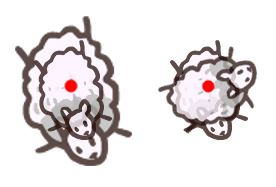
By default, all the scaling and rotating is based on the top-left of the image.
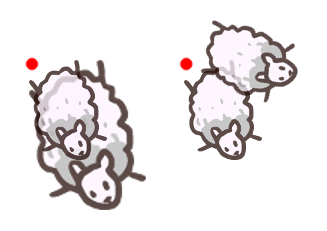
This is based on the origin of the image. If we want to scale the image from the center, we’ll have to put the origin in the center of the image.
love.graphics.draw(myImage, 100, 100, 0, 2, 2, 39, 50)
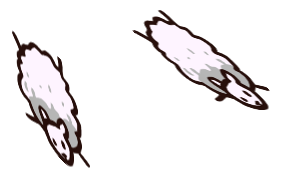
kx and ky
These are for shearing (which doesn’t have a k at all so I’m not sure what to make of it).
With it you can skew images.
love.graphics.print, which we used before to draw text, has these same arguments.
x, y, r, sx, sy, ox, oy, kx, ky
Again, all these arguments except image can be left out. We call these optional arguments.
You can learn about LÖVE functions by reading the API documentation.
Image object
The image that love.graphics.newImage returns, is actually an object. An Image object. It has functions that we can use to edit our image, or get data about it.
For example, we can use :getWidth() and :getHeight() to get the width and height of the image. We can use this to put the origin in the center of our image.
function love.load()
    myImage = love.graphics.newImage("sheep.png")
    width = myImage:getWidth()
    height = myImage:getHeight()
end

function love.draw()
	love.graphics.draw(myImage, 100, 100, 0, 2, 2, width/2, height/2)
end
Color
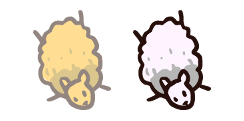
You can change in what color the image is drawn with love.graphics.setColor(r, g, b). It sets the color for everything you draw, so not only images but rectangles, shapes and lines as well. It uses the RGB-system. Although this officially ranges from 0 to 255, with LÖVE it ranges from 0 to 1. So instead of (255, 200, 40) you would use (1, 0.78, 0.15). If you only know the color using the 0-255 range, you can calculate the number you want with number/255. There is also the fourth argument a which stands for alpha and decides the transparency of everything you draw. Don’t forget to set the color back to white if you don’t want the color for any other draw calls. You can set the background color with love.graphics.setBackgroundColor(r, g, b). Since we only want to call it once, we can call it in love.load.
function love.load()
    myImage = love.graphics.newImage("sheep.png")
    love.graphics.setBackgroundColor(1, 1, 1)
end

function love.draw()
	love.graphics.setColor(255/255, 200/255, 40/255, 127/255)
	love.graphics.setColor(1, 0.78, 0.15, 0.5)
	-- Or ...
	love.graphics.draw(myImage, 100, 100)
	-- Not passing an argument for alpha automatically sets it to 1 again.
	love.graphics.setColor(1, 1, 1)
	love.graphics.draw(myImage, 200, 100)
end
Summary
We load an image with myImage = love.graphics.newImage("path/to/image.png"), which returns an Image object that we can store in a variable. We can pass this variable to love.graphics.draw(myImage) to draw the image. This function has optional arguments for the position, angle and scale of the image. An Image object has functions that you can use to get data about it. We can use love.graphics.setColor(r, g, b) to change in what color the image and everything else is drawn.
Code homework
This is a warmup assignment to help you get started experimenting in Love2d, looking up commands in the reference, and trying your hand and starting to make games.
During this assignment, don’t forget there is a useful wiki and tutorials page with links to info and code snippets you can use.
For homework, you will be creating an experimental video game character and making it interactive, in Love2d.
- Start out in a notebook (or on the computer, though notebook is preferable). Ideally you use pen on physical paper. Come up with a name, and a short description. Consider this a character in a RPG or a platformer.
- Turn your drawing into a digital image through scanning, photography, tracing, etc. Then start a new Love2d project and import your character into your game. Remember to start by creating a new folder for your game, and saving your file inside it as main.lua.
- Add interactivity so a player can manipulate the character. Inside love.update() check for key presses so the player can use WASD or arrow keys to control the movement.
- OPTIONAL: Add environmental features like terrain to the game
- OPTIONAL: Add items in the game
To turn in, upload your file as a compressed zipped folder and a screenshot.
Credits
- Oh My Giraffe © Nico Prins, 2015
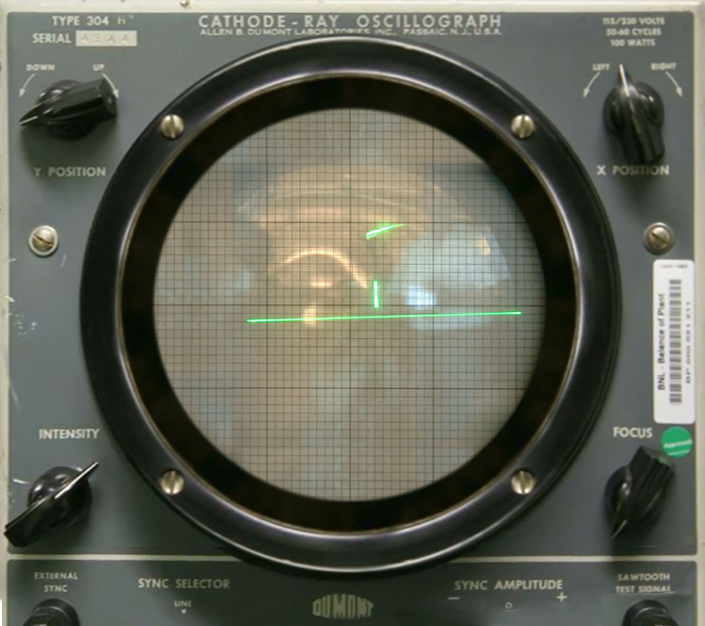
- Image of Tennis for Two (1958)
- Copyright (c) 2022 Sheepolution
- How to program games with the LÖVE gaming engine on the Raspberry Pi by Seth Kenlon CC BY-SA